
How to add a new voice in Text Speaker?
-
I am a new user and do not have much technical background. I want to create text to audio files using Text Speaker. I want to use different voices, but I don’t know how to add a different voice in Text Speaker. Need some help!
-
Text Speaker allows you to add different voices to read text documents.
To add a voice in Text Speaker, first you have to download and install the required voice. You can download the voices from link given below:
https://www.deskshare.com/text-to-speech-voices.aspxInstalling the voice is a simple process, just like installing the software. After installing the voice, Open Text Speaker. The installed voice will be added to the Voice drop down list in the main user interface.
Now, to create text to audio file, click Speak >> Convert Current File to Audio. The audio files can be produced in WAV and MP3 formats. Once you configured these settings, click OK button.
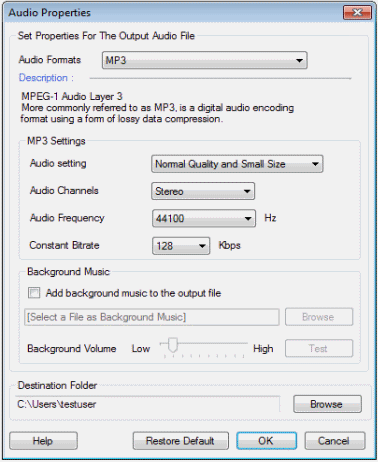
Your text file will be converted into audio format and you will be able to listen it in the newly added voice.
Hello! It looks like you're interested in this conversation, but you don't have an account yet.
Getting fed up of having to scroll through the same posts each visit? When you register for an account, you'll always come back to exactly where you were before, and choose to be notified of new replies (either via email, or push notification). You'll also be able to save bookmarks and upvote posts to show your appreciation to other community members.
With your input, this post could be even better 💗
Register Login