
Hiding the mask area from camera preview
-
I am evaluating the trial version of WebCam Monitor to keep an eye on my backyard. I noticed that the trees in the backyard cause motion so I have used a mask, but the white colored mask is displayed on the screen. Can I remove it from the on-screen camera preview?
-
You can hide the mask area from the camera preview in WebCam Monitor.
To hide the mask area, right click on the camera preview and select the **Edit Camera **option. On the Mask Area tab, uncheck the Show mask area on camera preview option.
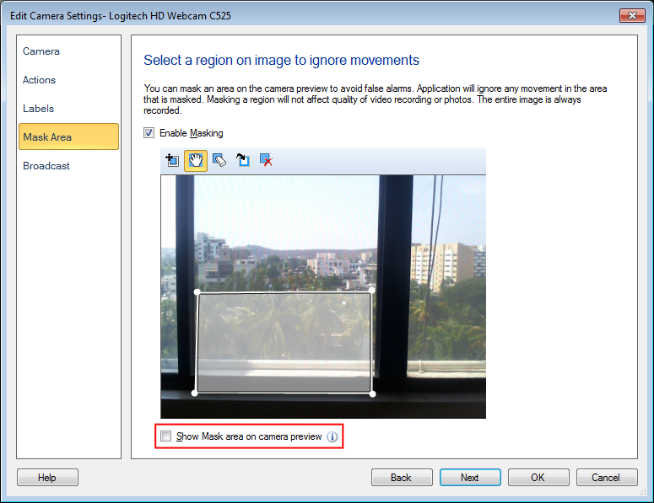
Note- Even if the mask area is hidden from the preview, it will still function as a mask and the motion will not be detected behind the masked region.
Hello! It looks like you're interested in this conversation, but you don't have an account yet.
Getting fed up of having to scroll through the same posts each visit? When you register for an account, you'll always come back to exactly where you were before, and choose to be notified of new replies (either via email, or push notification). You'll also be able to save bookmarks and upvote posts to show your appreciation to other community members.
With your input, this post could be even better 💗
Register Login