
Getting a confirmation before starting a scheduled screen recording
-
I have a few screen recordings scheduled in the Pro version. Most of the times it is OK for them to run, but sometimes when I am doing important work and I don't want the schedule to run. How can I approve the schedules to start only when I want?
-
You can set My Screen Recorder Pro to display a message box asking for confirmation before starting recording.
While adding a schedule click on the 'New' button under 'Actions to be performed at the start of recording:' section in the New Task dialog.
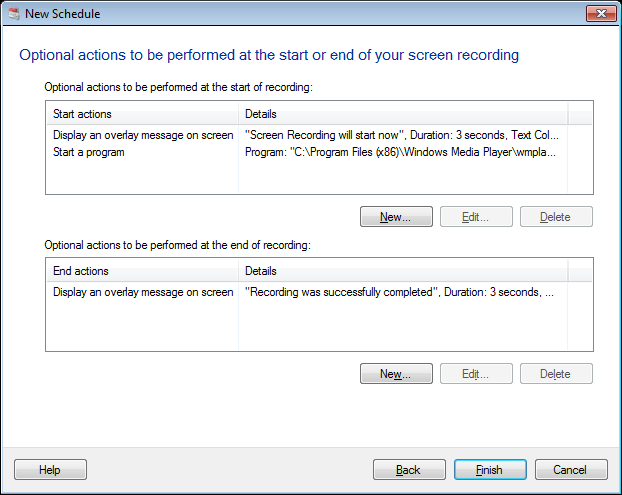
Next, select 'Display a message box' option from the 'Action' dropdown. Enter the title, message to be displayed and select the 'OK and Cancel buttons' option from the 'Confirmation' dropdown. You must click 'OK' to start recording or click 'Cancel' to discard it. Finally, click on the 'Preview' button to see a preview of the message box.
When your schedule launches, a message box will be shown asking for confirmation to begin.
Hello! It looks like you're interested in this conversation, but you don't have an account yet.
Getting fed up of having to scroll through the same posts each visit? When you register for an account, you'll always come back to exactly where you were before, and choose to be notified of new replies (either via email, or push notification). You'll also be able to save bookmarks and upvote posts to show your appreciation to other community members.
With your input, this post could be even better 💗
Register Login