
Setting the custom region recording as a default
-
I have just started using My Screen Recorder. I would like to know how to set the default recording region so that I can record only the part of my screen. Every time when I start recording, I am shown the controls to select custom region. I don't want to have to select the region every time.
-
My Screen Recorder allows you the flexibility of recording the entire screen, or just a portion. When you start recording from the File menu or use the Record icon on the tool bar, you will see the Recording Options dialog. If you select the Custom Region, the crosshair mouse pointer is displayed. Drag the crosshair across the desired area on your desktop to select the region of the screen to record.
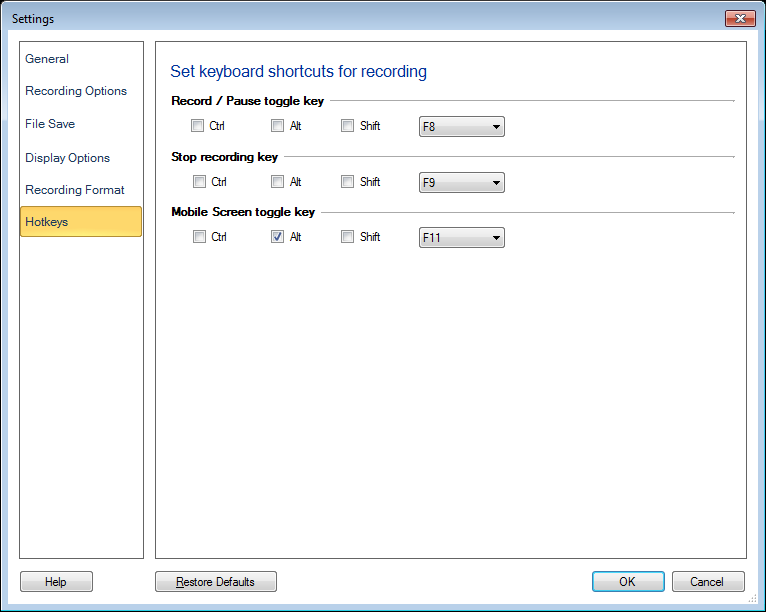
Once you have selected the custom region on the screen, use Keyboard shortcuts for performing your future recordings. When you use the keyboard shortcut to begin recording, the previous region selection is used. You don't have to select the region every time, as long as you use Keyboard shortcuts.
You can set the keyboard shortcuts from Settings:
Hello! It looks like you're interested in this conversation, but you don't have an account yet.
Getting fed up of having to scroll through the same posts each visit? When you register for an account, you'll always come back to exactly where you were before, and choose to be notified of new replies (either via email, or push notification). You'll also be able to save bookmarks and upvote posts to show your appreciation to other community members.
With your input, this post could be even better 💗
Register Login