
Remove the red border around the camera preview during monitoring
-
I have added my USB camera in WebCam Monitor and configured it to start recording and capture photos on motion detection. There is a red colored border shown around the camera preview during monitoring, can this be removed?
Thanks in advance… -
The red border helps to easily distinguish the camera on which motion is detected. This is useful when you are displaying multiple camera previews on the screen.
You can disable the red border around the camera window in WebCam Monitor.
To disable the border, click on the Configure button under the Start Actions section on the Quick Access panel. On the Motion Settings dialog, uncheck the Highlight camera preview border in red color option and save the changes. Then click on the Start Monitoring button on Quick Access panel.
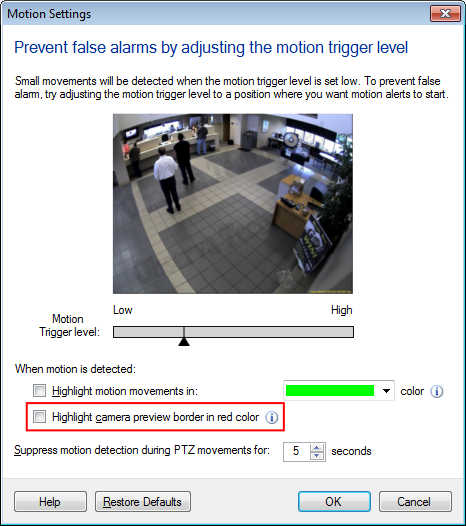
Give it a test. Whenever motion is detected, the actions will be performed, and the camera border will no longer be highlighted.
Hello! It looks like you're interested in this conversation, but you don't have an account yet.
Getting fed up of having to scroll through the same posts each visit? When you register for an account, you'll always come back to exactly where you were before, and choose to be notified of new replies (either via email, or push notification). You'll also be able to save bookmarks and upvote posts to show your appreciation to other community members.
With your input, this post could be even better 💗
Register Login