
Remove the unwanted sections of the recording
-
I have some older recordings which I want to edit. A section of the video is not relevant now, so I want to remove it. Can My Screen Recorder Pro edit video?
-
You can use the Trim File feature in My Screen Recorder Pro to remove unwanted sections of your older recordings.
Begin by creating a shortcut for the folder which contains the older videos from File >> Folder Shortcut >> Add. All the videos from the folder should be listed in the list view. Select the video from the list view and click on the Trim File option on the toolbar.
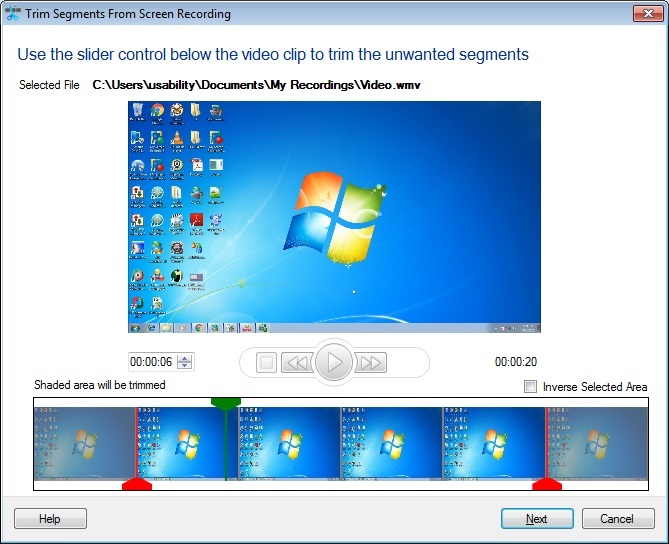
On the Trim Segments from Screen Recording dialog, you will see a preview of the video you selected. Use the markers to specify the start and end frame of the output video. The shaded area will be trimmed. Select the Inverse Selected Area option to reverse the section to be trimmed.
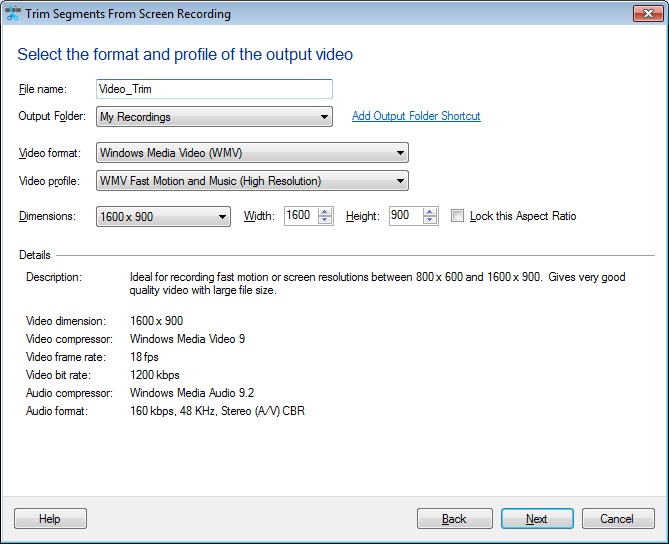
Go to the next page and enter the file name, choose the output folder location, video format, and profile. Click the Next button to start the trimming process. In this way, you can remove unwanted sections from the video files.
Hello! It looks like you're interested in this conversation, but you don't have an account yet.
Getting fed up of having to scroll through the same posts each visit? When you register for an account, you'll always come back to exactly where you were before, and choose to be notified of new replies (either via email, or push notification). You'll also be able to save bookmarks and upvote posts to show your appreciation to other community members.
With your input, this post could be even better 💗
Register Login