
Adjusting the audio file size in Text Speaker
-
I would like to know if it is possible to adjust the size of the audio file generated by Text Speaker when I convert my text to audio.
-
Text Speaker has a few settings that will control the size of the audio file when you convert text to audio in MP3 or WAV format.
To convert text to audio format, click on the Convert to Audio option on the toolbar. On the Audio Properties dialog, look for the MP3 settings section. You can select the option from the Audio setting dropdown according to quality and size requirement. If you select a higher quality, the file size will be larger.
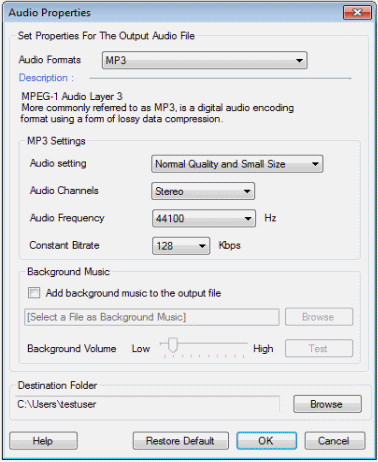
You can adjust the audio frequency for the file to be generated. A higher frequency produces better quality but larger audio files. You can also adjust the constant bitrate. High bitrate value results in larger files.
You can use the above settings to get the exact balance of audio quality and size you require. The default settings in Text Speaker will create audio files that sound good and are still compact.
Hello! It looks like you're interested in this conversation, but you don't have an account yet.
Getting fed up of having to scroll through the same posts each visit? When you register for an account, you'll always come back to exactly where you were before, and choose to be notified of new replies (either via email, or push notification). You'll also be able to save bookmarks and upvote posts to show your appreciation to other community members.
With your input, this post could be even better 💗
Register Login