
Scheduling Text Speaker to read a file
-
I want to use Text Speaker to read a file at a specific time of the day. Can I do this?
-
Text Speaker can read a document at a specified time using the Talking Reminders feature.
To schedule a reminder, click on the Talking Reminders icon on the tool bar. Next, click the Create button and enter a start date and time. You can repeat the schedule every ‘N’ days. Choose the ‘Text File Containing Message’ option and click the add file icon to select a file. Click the Ok button to save the reminder.
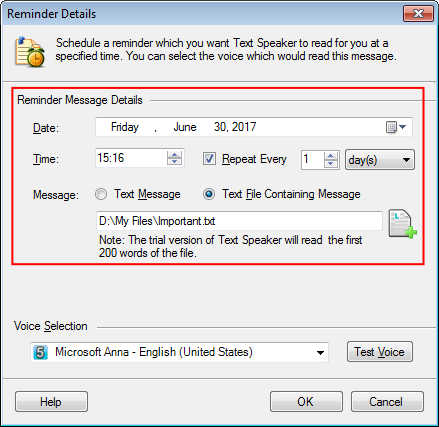
Once configured, a reminder will appear the specified time and the selected text file will be narrated. You will be able to get the reminder even if Text Speaker is not running.
Hello! It looks like you're interested in this conversation, but you don't have an account yet.
Getting fed up of having to scroll through the same posts each visit? When you register for an account, you'll always come back to exactly where you were before, and choose to be notified of new replies (either via email, or push notification). You'll also be able to save bookmarks and upvote posts to show your appreciation to other community members.
With your input, this post could be even better 💗
Register Login